Multifunctional I/O expansion module iOMATEX ExBD-12/12-12 (24)
Introduction
Before beginning work with the iOMATEX ExBD-12/12-12 (24) multifunctional I/O expansion module (hereinafter referred to as the Module), you must read this manual. This document contains instructions for configuring, connecting, and safely operating the device.
Safety Precautions:
- The Module is designed in accordance with electrical safety standards.
- Installation and commissioning must be performed by qualified personnel.
- Operation at temperatures below -20°C or above +60°C is prohibited.
Module purpose and scope of application
Module Purpose
The iOMATEX ExBD-12/12-12 (24) is an intelligent peripheral controller designed to expand the capabilities of the iOMATEX platform.
Its primary function is data acquisition and control of 12 digital inputs and 12 relay outputs within automation systems
This is professional equipment and is not intended for domestic (household) use.
Scope of Application
The Module is designed for automation, monitoring, and digital signal control in the following fields:
- Building Automation: Lighting control, HVAC systems, and access control.
- Industrial Automation: Equipment control and small-scale sensor data acquisition.
- Agrotechnology Irrigation automation and greenhouse climate control.
- Security Systems: Fire and burglar alarm management, access control (gates, doors), and video surveillance.
- Prototyping: Development of industrial device prototypes and test benches
Technical specifications
| Parameter | Value / Description |
|---|---|
| Communication Interface | RS485 (isolated) |
| Communication Protocol | Modbus RTU |
| Device Address | Configurable, 1–64 |
| Baud Rate | 2400, 4800, 9600 (default), 19200 bps (configurable) |
| Supply Voltage | 12V (12V version) or 24V (24V version) DC (±20%) |
| Current Consumption | Static: 14 mA; Max (all relays active): up to 300 mA |
| Mounting | НDIN rail (TS-35 / C45) |
| Operating Temperature | -20°C to +60°C |
| Digital Inputs (DI) | 12 channels, NPN (Active Low) |
| Digital Outputs (DO) | 12 relay channels (NO, COM, NC) |
| Max Relay Load | 10A / 250VAC; 10A / 30VDC |
| Dimensions (with housing) | ~ 184 x 88 x 42 mm |
| Weight (with housing) | ~318 g |
Completeness
| Item Name | Quantity |
|---|---|
| Multifunctional I/O expansion module iOMATEX ExBD-12/12-12 (24) | 1 unit |
Appearance
 |  |
|---|
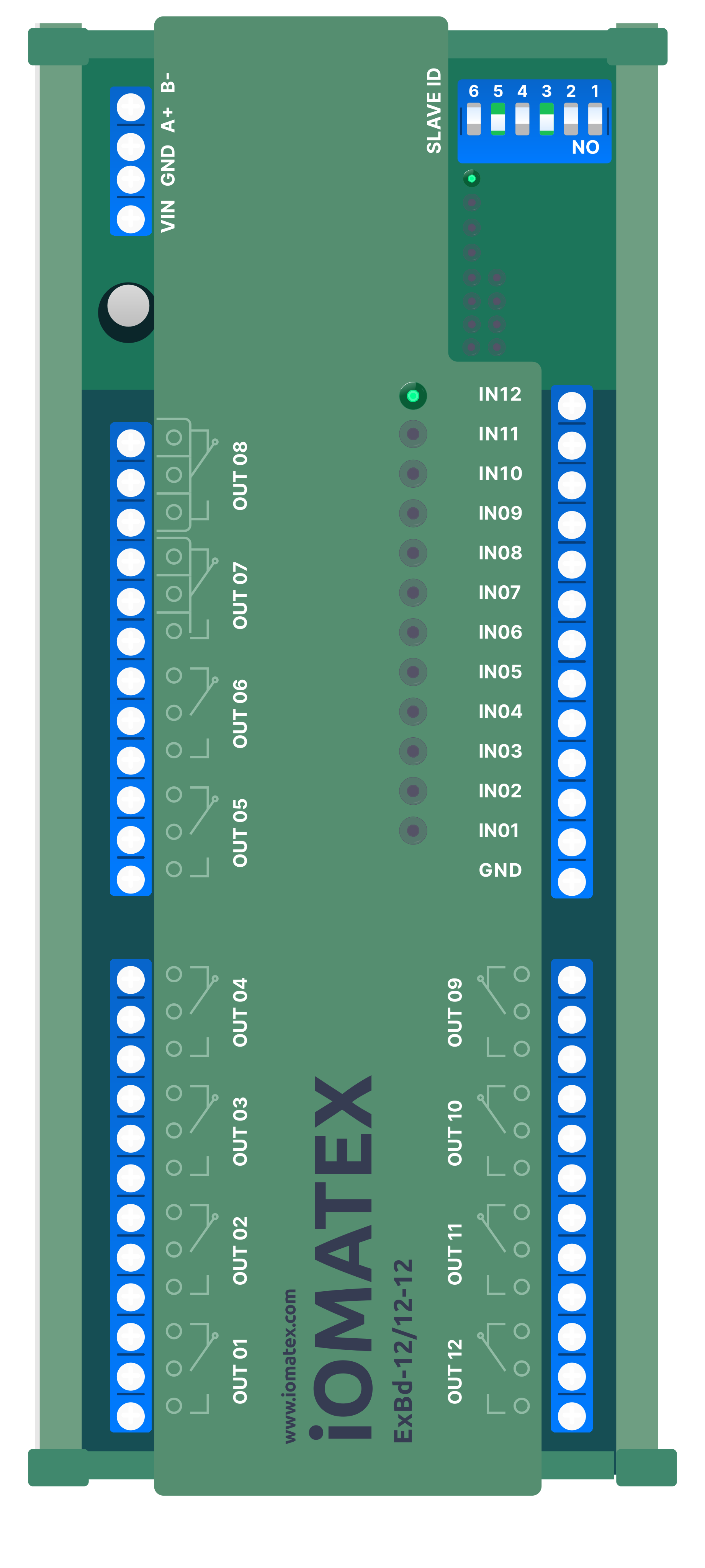
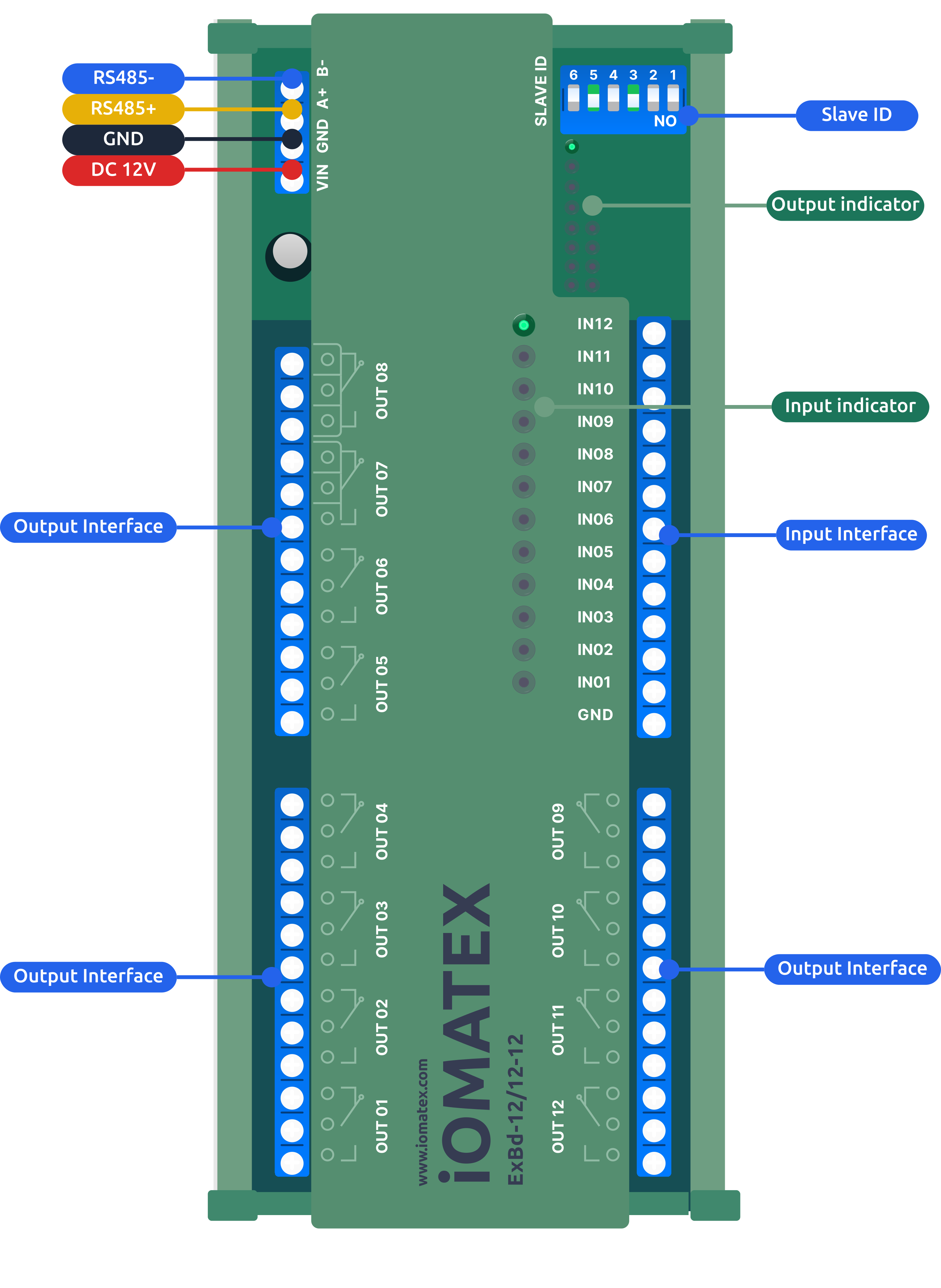
Figure 1. iOMATEX ExBD-12/12-12 (24) Multifunctional I/O Expansion Module
Preparation for Operation
Wiring Diagram
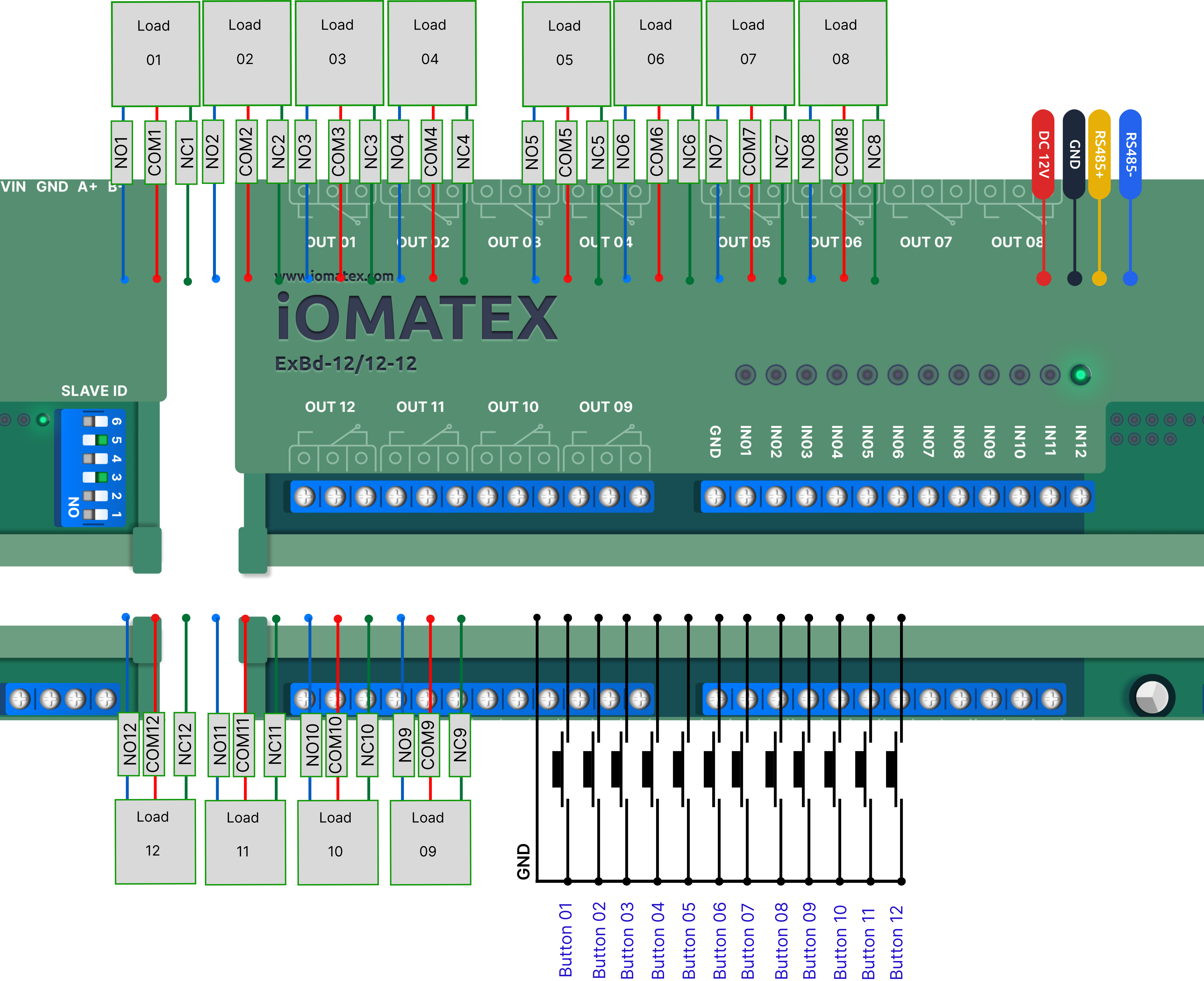
General wiring diagram for connecting the iOMATEX ExBD-12/12-12 (24) to controlled devices.
 |
|---|
Figure 2. General view of the connection system iOMATEX ExBD-12/12-12 (24)
Wiring Diagram Description
1. Power Supply Connection
- Terminals: +VIN and GND
- Source: Regulated 12 V or 24 V DC supply (depending on the module version)
(see Figure 2)
2. RS485 Interface Connection (Modbus RTU)
- Terminals: A+, B−
- Topology: Linear bus (daisy-chain), not star
- Use of a 120 Ω termination resistor at both ends of the line is recommended
3. Discrete Input Connection (IN1–IN12)
- Type: Optically isolated, NPN
- Dry contact connection: one contact to INx, the other to module GND
4. Load Connection to Discrete (Relay) Outputs (OUT1–OUT12)
- Each channel provides three terminals: NO (Normally Open), COM (Common), NC (Normally Closed)
- Supports 7 control modes: “open”, “close”, “momentary”, “self-latching”, “interlocking”, “delay”, and “inter-channel interlock”
(see Figure 2)
Connecting the Module to a Computer. Initial Check and Configuration
To connect the module to a computer for configuration and control, a USB-to-RS485 adapter is required.
Initial Check and Slave ID Configuration Using Serial Port Tester (or similar)
1. Preparation and Physical Connection
- Connect the power supply to the module terminals V+ and GND (12 V or 24 V depending on the version).
- Connect the communication line: terminal A+ of the module to A+ of the USB adapter, and B− of the module to B− of the adapter.
- Plug the adapter into a USB port on the computer and determine the assigned COM port number in the Device Manager.
2. Communication Parameter Setup
- Launch the Serial Port Tester software.
- Go to Port → Settings.
- Set the following parameters (according to the factory default settings of the module):
- Port number: Select your COM port
- Baud rate: 9600 (default)
- Data bits: 8
- Parity: None
- Stop bits: 1
- Flow control: None
- Click OK, then select Port → Open (COMx) to activate the port.
3. Data Transmission Format Setup The module operates using the Modbus RTU protocol, which requires HEX format data transmission.
- Go to Options.
- In the Send Settings section, select “Send as Hex”.
- Note: If AT commands are used for specific configuration, the “Send as ASCII” mode may be required. However, HEX format is mandatory for relay control.
4. Sending Commands (Examples)
Enter the command in the lower input field of the software and click Send.When operating in Modbus RTU mode, the CRC checksum must be entered manually if the software does not append it automatically.
Example commands for Slave ID = 1: * Turn ON relay No.1: `01 06 00 01 01 00 D9 9A` * Turn OFF relay No.1: `01 06 00 01 02 00 D9 6A` * Momentary activation (0.5 s): `01 06 00 01 05 00 DB 5A` * Delay 10 seconds (Delay mode): `01 06 00 01 06 0A 5B AD`5. Response Verification
- After sending a command, a response from the module should appear in the upper window of the software.
- If the response matches the transmitted command, the operation has been executed successfully.
- If there is no response, check the following:
- A/B line polarity
- Slave ID settings (A0–A5 DIP switches on the module)
- Baud rate configuration
When using DIP switches (A0–A5) to set the Slave ID, ensure they are configured correctly before applying power, as the device address is read during startup.
Initial Check and Slave ID Configuration Using Modbus Poll
1. Preparation and Physical Connection
- Connect the power supply to the module terminals V+ and GND (12 V or 24 V depending on the version).
- Connect the communication line: terminal A+ of the module to A+ of the USB adapter, and B− of the module to B− of the adapter.
- Set the Slave ID (device address) using DIP switches A0–A5 (default address is 1 when all switches are in the OFF position).
2. Connection Setup
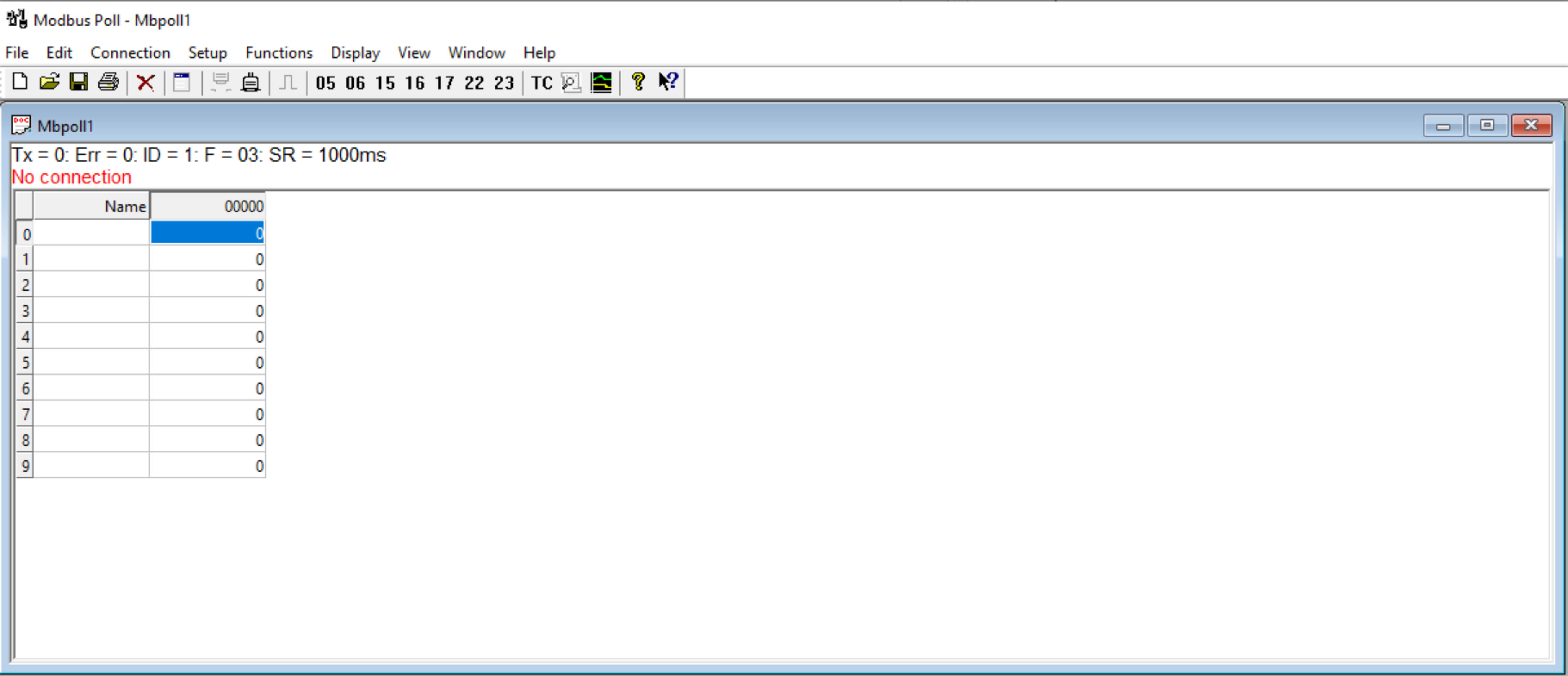
- Launch Modbus Poll. If the status shows “No Connection”, proceed to configuration.
- Select Connection → Connect... (or press F3).
- In the Connection Setup window, configure the following parameters:
- Connection: Serial Port
- Port: Select your COM port (from Device Manager)
- Baud Rate: 9600 (factory default)
- Data Bits: 8
- Parity: None (in some versions, Even may be required, but the standard is None)
- Stop Bits: 1
- Mode: RTU
- Click OK.
 |
|---|
Figure 3. Modbus Poll Utility Interface
3. Read/Write Definition Setup
- To define the data exchange parameters with the module:
- Select Setup → Read/Write Definition... (or press F2).
- Set the following parameters:
- Slave ID: Enter the address set via DIP switches (e.g., 1)
- Function: Select 06 Write Single Register (for relay control)
- Address: Start from address 1
- Quantity: 1
- Click OK.
4. Module Control (Writing Values)
- In the main window, double-click a value cell (e.g., Register 00001).
- In the Enter Value dialog, input the command code in HEX format (e.g., 0300 for specific functions) and click OK.
- The software will automatically generate the data frame with CRC and send it to the module. The status line will display the number of successful transactions (Tx).
5. Using Test Center (Direct HEX Transmission)
For sending specific commands (e.g., delay activation), use the built-in terminal:
- Select Functions → Test Center.
- Enter the HEX sequence without CRC, for example:01 06 00 01 01 00 (turn ON relay No.1)
- Ensure that the Add Check (CRC) option is enabled — the software will append the required CRC automatically.
- Click Send. The log window will display the transmitted frame (e.g., 01 06 00 01 01 00 D9 9A) and the response from the module.
If data is not received (“Timeout Error”), verify that the Slave ID is set correctly. Note that the DIP switch state is read by the module only at power-up.
Module Connection and Configuration in the iOmatex Online Service Web Application
1. Gateway Connection
Ensure that the IOMX G-Box 023D gateway is connected to an Ethernet/Wi-Fi network and registered in the iОmatex system.1
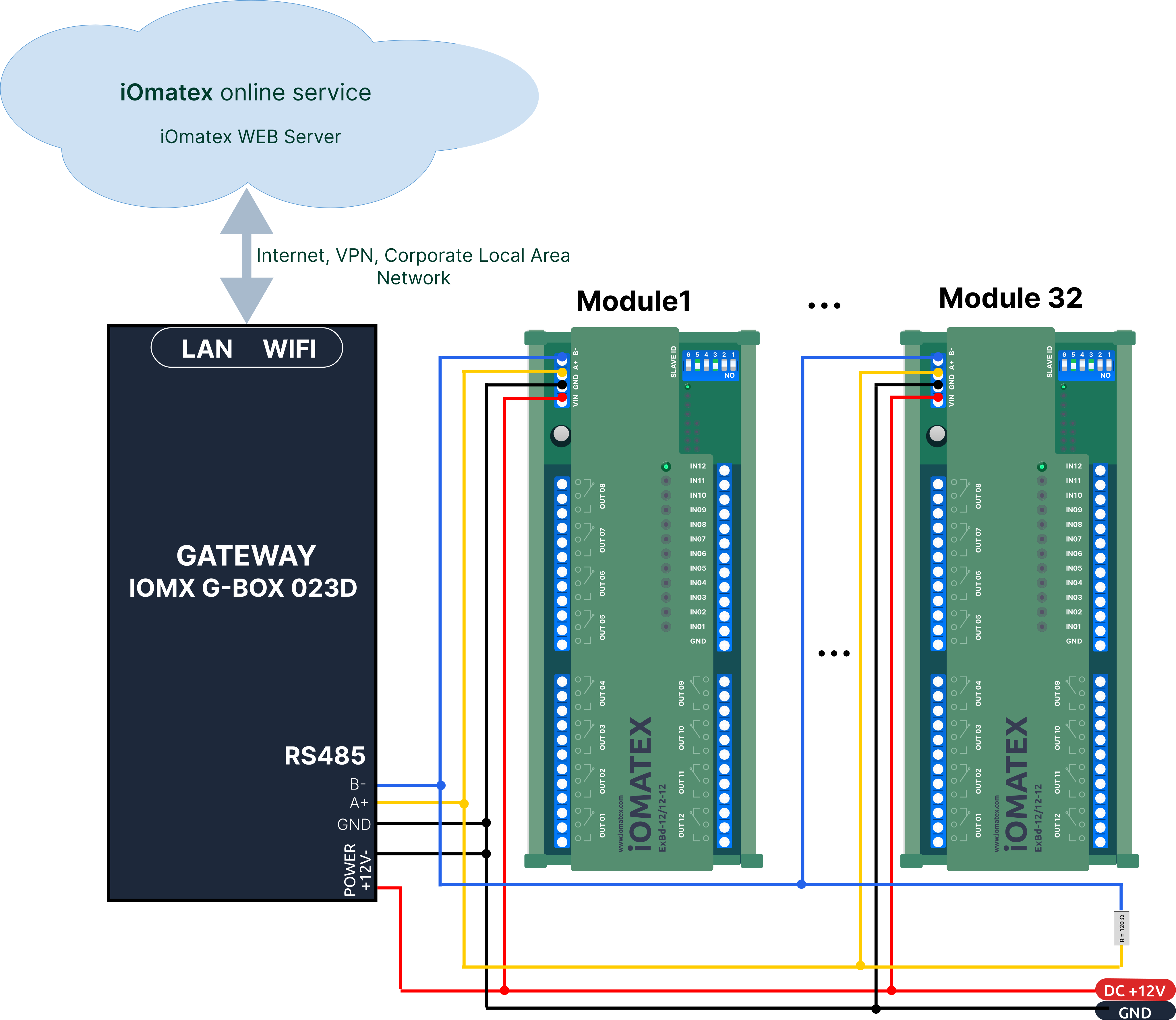
2. Module Connection via RS-485 Connect the iOMATEX ExBD-12/12-12 (24) module to the gateway via RS-485 (A and B lines, observe polarity). (Up to 32 modules can be connected to a single gateway over the RS-485 bus.)
 |
|---|
Figure 4. Connection of the iOMATEX ExBD-12/12-12 (24) module and the IOMX G-Box 023D gateway to the RS-485 interface and iOmatex network.
3. Adding the Module in the iOmatex Web Interface
- Open the iOmatex web interface and navigate to the “Devices” section.
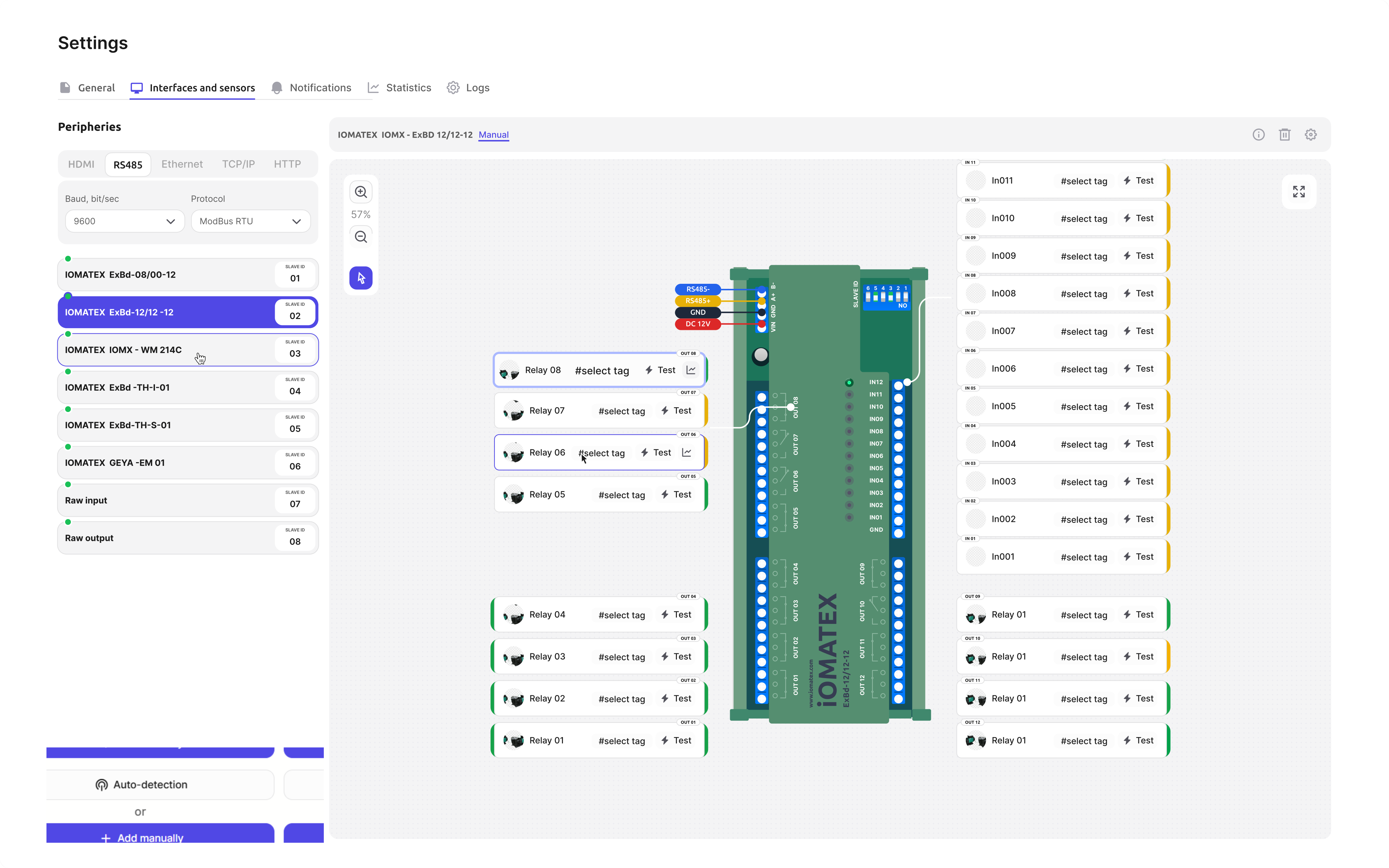
- Enable “Auto-detection”. The system will automatically detect the connected module on the RS-485 network.
 |
|---|
Figure 5. Web interface for configuring the iOMATEX ExBD-12/12-12 (24) module.
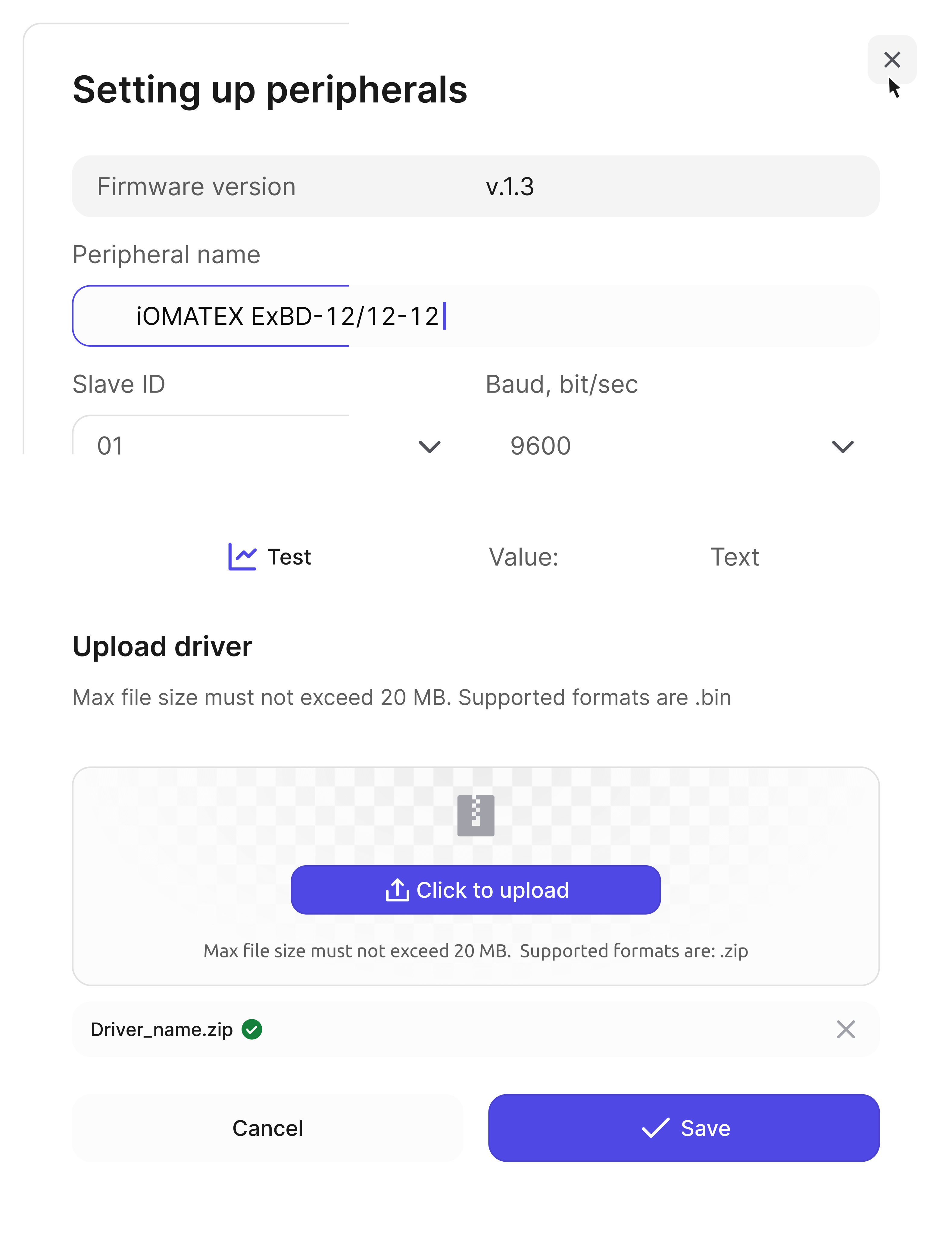
4. Module Parameter Configuration (if required) After adding the module, configure the following parameters: Slave ID — unique module address Baud Rate — communication speed (default: 9600 bps)
 |
|---|
Figure 6. Peripheral configuration
Packaging
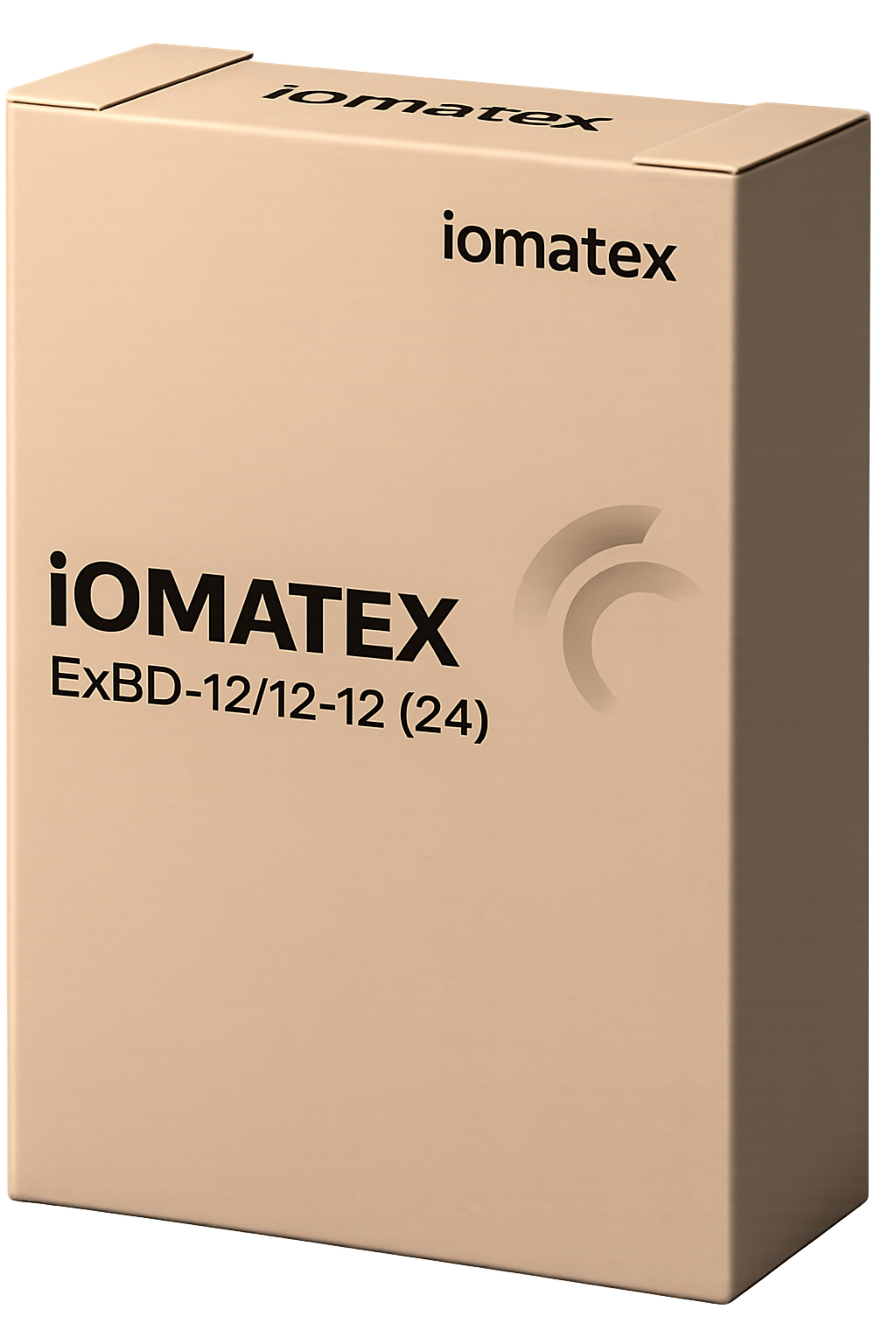
Overall dimensions of the iOMATEX ExBD-12/12-12 (24) module: W × H × D ≈ 180 mm × 72 mm × 19 mm. 2
 |
|---|
Figure 7. Packaging of the iOMATEX ExBD-12/12-12 (24) module
Maintenance
The iOMATEX ExBD-12/12-12 (24) module does not require scheduled maintenance.
Transportation and Storage Requirements
- Transportation of the device is permitted only in the original packaging.
- Ambient temperature: from −20°C to +60°C
- Relative humidity: not more than 80% (non-condensing)
Manufacturer’s Warranty
General Provisions
The manufacturer guarantees reliable and uninterrupted operation of the iOMATEX ExBD-12/12-12 (24) module, provided that the operating, transportation, and storage requirements specified in this manual are observed. The warranty period is 12 months from the date of sale to the end user.
Warranty Terms and Conditions
The manufacturer undertakes to repair defects or replace the product within the warranty period, subject to the following conditions:
- The defect is not caused by violation of operating, storage, transportation, or installation requirements by the user.
- No unauthorized modifications have been made to the module design, including its electrical circuitry.
- The module has not been repaired or disassembled by unauthorized personnel.
- A properly completed warranty card is provided, including the date of sale, along with a commissioning/connection certificate
Warranty Limitations
The manufacturer shall not be liable, and the warranty does not apply in the following cases:
- Incompleteness or mechanical damage discovered after the module is transferred to the customer.
- Failures caused by natural disasters, fire, or other force majeure events
- Absence of the sale date on the warranty card (in this case, the warranty period is calculated from the manufacturing date specified in the product passport)
Service Centers. Technical support
📄 Download the PDF version of the instructions
📄 Download the short PDF version of the instructions
- Connection to the iOmatex online service is performed via the IOMX G-Box 023D network gateway, which is purchased separately. Access to the iOmatex online service is also provided on a paid basis. For support inquiries, please contact: service@it-screen.com Detailed information about the iOmatex/IT-Screen service is available at: https://wiki.it-screen.com/↩
- The packaging may slightly differ.↩